How to Trigger ATEM Switcher Cuts from Your Rundown (Step by Step)
Every show has the same moments. The opener ends, and someone cuts to camera 2. The interview starts, and someone puts the lower third on air. Every week, the same button is pressed on the same cue, by someone who could be watching the show instead.
This guide shows how to let the rundown in Fabl press that button. When an item is cued, goes on air, or completes, Fabl sends the matching Blackmagic ATEM command: a preview, a cut, an auto transition, a keyer, a macro, or a recording start. The ATEM stays your switcher, and the director stays in control. Switcher control is one part of Fabl, the open production operating layer: in Go Live, the rundown you planned is the rundown that runs the show.
The short answer: To trigger ATEM switcher cuts from a rundown, connect a control application to the ATEM over the network and create a rule that links a rundown event to a switcher command. In Fabl, Fabl Studio Agent connects to the ATEM on your local network (commonly on port 9910), and a rule such as "when a rundown item completes" runs a device command such as Cut or Auto. The ATEM reports program, preview, transition, and keyer state back, so the rundown shows what is actually on air.
How rundown-driven switching works
Rundown-driven switching has three parts, whatever tools you use:
- A rundown event. Something happens in the running order: an item is cued, goes on air, or completes, or the rundown starts or stops.
- A rule. The rule decides what that event means. It can check conditions, such as "only for interview items", before anything fires.
- A switcher command. The rule sends one or more commands to the switcher: set preview, cut, auto, keyer on, run a macro.
The result is that the plan and the switcher stop being two separate things. When the producer moves past the segment in the rundown, the cut happens without anyone pressing a second button on another surface.
The same pattern works for graphics, audio, playout, and recording. For the wider picture, from brief and script through to publishing and archive, read studio automation without replacing your stack. This guide stays with the switcher.
What you need before you start
An ATEM on the network
Blackmagic ATEM switchers can be controlled over Ethernet with ATEM Software Control, and several control panels can be used at the same time. That is what makes rundown control possible: a control application connects to the switcher over the network, alongside the panels your team already uses. Connect the ATEM to the same network as Fabl Studio Agent with an Ethernet cable; the ATEM documentation covers the network settings.
A machine on the same network for the control software
In Fabl, that is Fabl Studio Agent, an on-premises service that runs on your production network. Planning, writing, and the rundown live in the cloud, while the agent executes the device commands locally, so there is no cloud round-trip in the critical path while you are on air.
The connection details
You need three things from the switcher:
- Host: the ATEM's IP address or hostname.
- Control port: commonly 9910.
- ME index: on multi-ME switchers, the mix-effect bus the commands should go to.
Labelled inputs and tested macros
Label your inputs on the switcher so the rules read clearly. If you plan to run macros from the rundown, record them on the switcher and test them there first.
Macros or direct commands?
There are two ways to make the ATEM do something from a rundown, and most shows use both.
ATEM macros record a sequence of switcher actions and store it on the switcher. You can run a macro from ATEM Software Control or from a hardware panel, and you can also run it from a rundown rule. Macros suit signature moves with several steps, such as a show opener that transitions, keys a logo, and changes an aux output in one go.
Direct commands are single, readable actions: set preview to camera 2, then cut. They are easier to follow in a rule, easier to change when the show changes, and easier to troubleshoot on the night, because the rule says exactly what it does.
Fabl can do both. It can run macros stored on the switcher, or send the individual commands documented for the ATEM integration.
Our recommendation: use direct commands for simple takes, and macros for the sequences you have already perfected on the switcher.
Step by step: cut your ATEM when a rundown item goes on air or completes
You can fire the cut at either moment. "When a rundown item goes on air" suits a cut that should happen on the take. "When a rundown item completes" suits a cut at the end of a segment. Both are rundown triggers in Fabl.
Register and start Fabl Studio Agent. In Fabl, go to Automations → Agents → Add agent. Install the agent with the one-time registration token on a machine that can reach the ATEM, and wait until its status shows Online.
Add the ATEM as a device. Go to Automations → Devices → Add device. Select the agent, choose Blackmagic ATEM as the device type, give it a name, and enter the switcher's host and UDP port (commonly 9910). If you don't know the address, use Scan network.
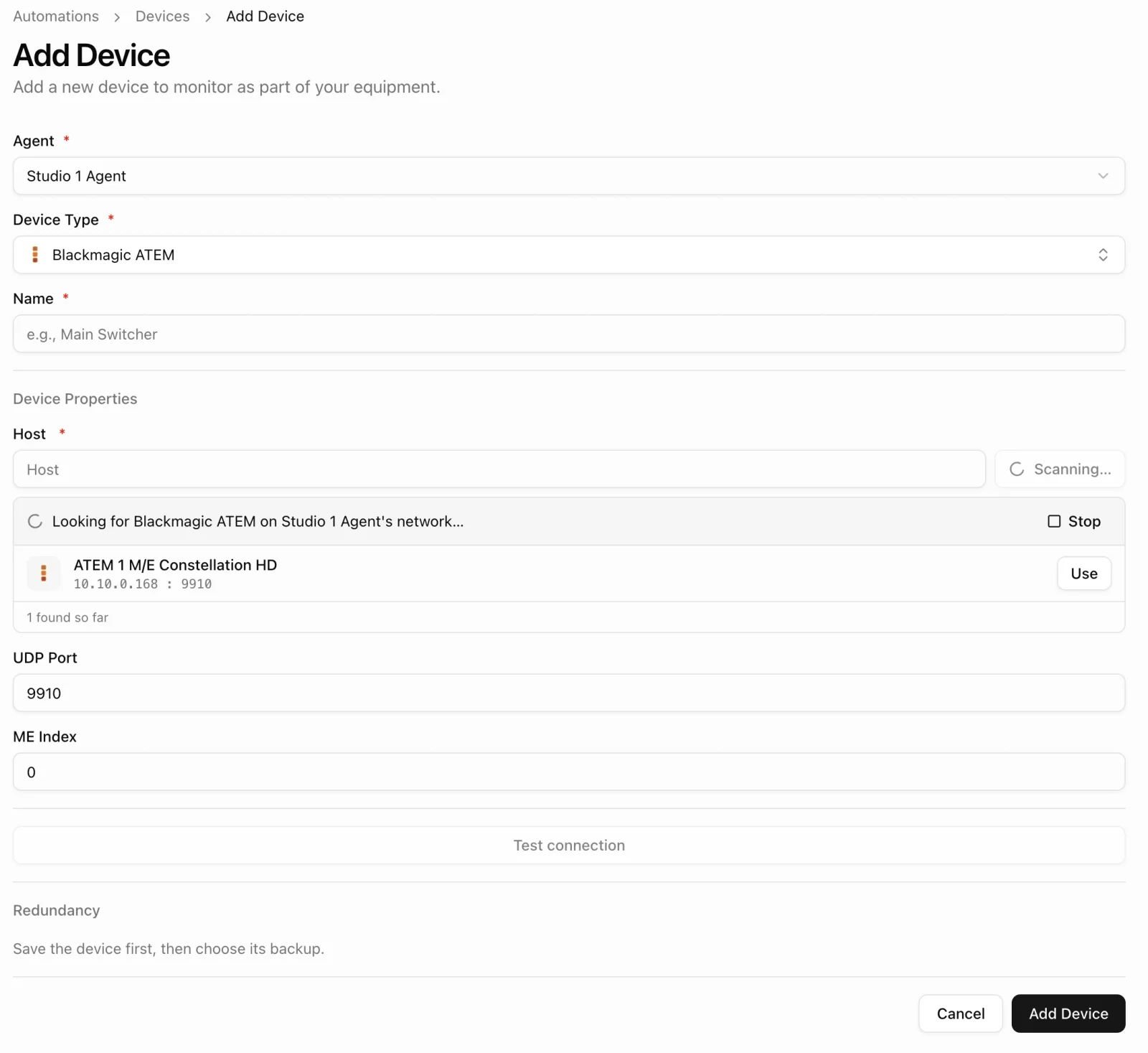 Scan network finds the ATEM on the agent's network. Use fills in the host and port.
Set the ME index. On a multi-ME switcher, set the ME Index to the mix-effect bus the commands should go to. On a single-ME switcher, leave it at 0.
Test the connection. Use Test connection before you add the device, then confirm that the switcher's program and preview inputs come back to Fabl.
Create a rule. Go to Automations → Rules → Add rule. Under When (trigger), choose the trigger category Rundown and the event "When a rundown item goes on air", or "When a rundown item completes" if the cut should happen at the end of the item. Under And (conditions), add conditions if the rule should only fire for certain items.
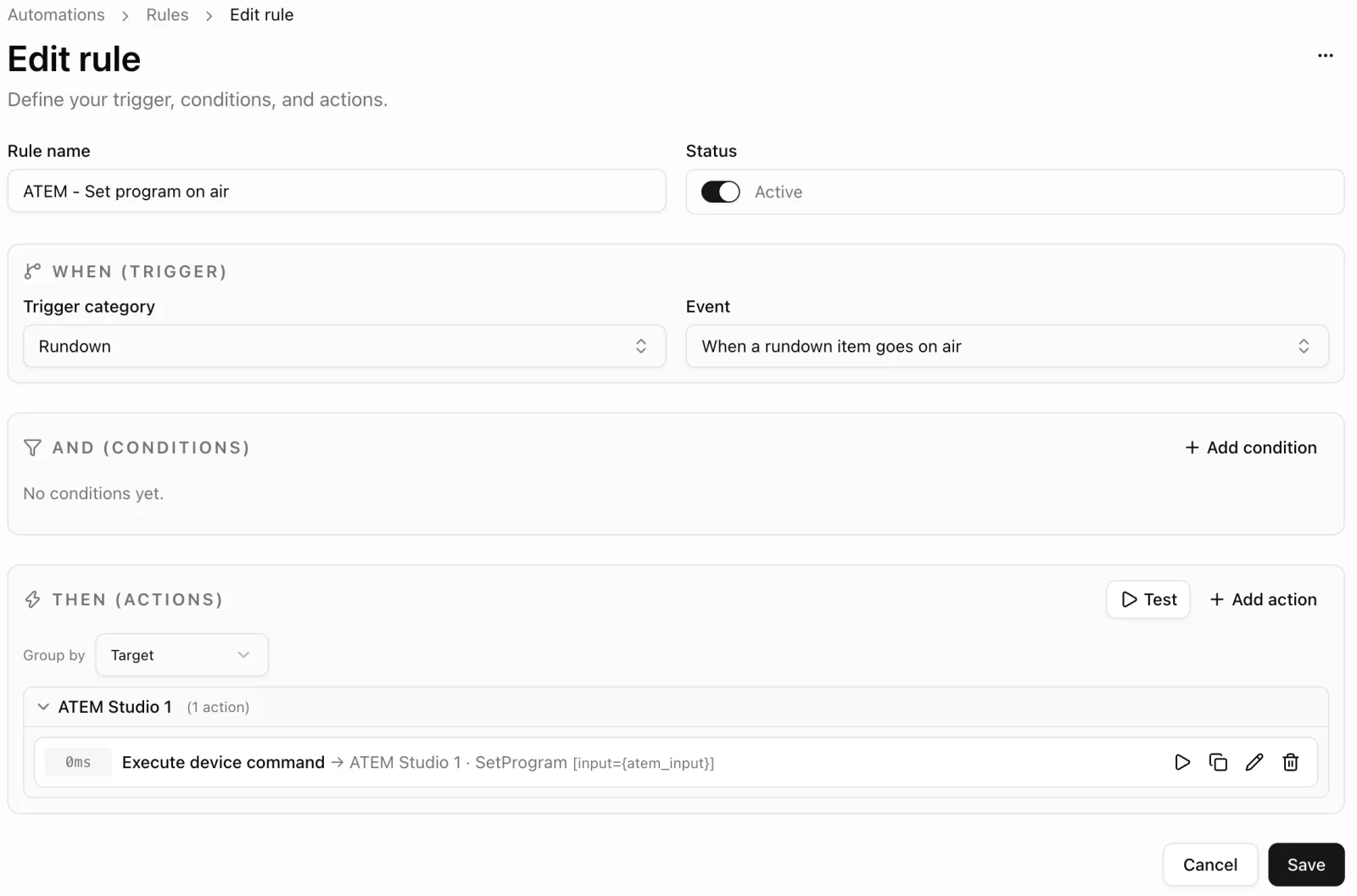 A rule that sets the ATEM's program input when a rundown item goes on air.
Here is the rule from the screenshot in its simplest form:
Rule:     ATEM - Set program on air
Trigger:  Rundown · When a rundown item goes on air
Action:   ATEM Studio 1 · Execute device command · SetProgram [input={atem_input}]
Scope:    This component
Add the switcher action. Under Then (actions), add an action with the action type Execute device command, choose the ATEM, and pick the command. SetProgram switches the program straight to an input. Cut and Auto transition to whatever is already on preview, so pair them with a rule that sets preview when the item is cued (step 7): preview on cue, then Auto on air, gives you a proper transition. Parameters can be fixed or come from the rundown. Give the input field in your rundown items an automation ID, such as atem_input, then enter {atem_input} as the input and set the scope to This component, so each rundown item carries its own camera number. Use Test action to check it before you save.
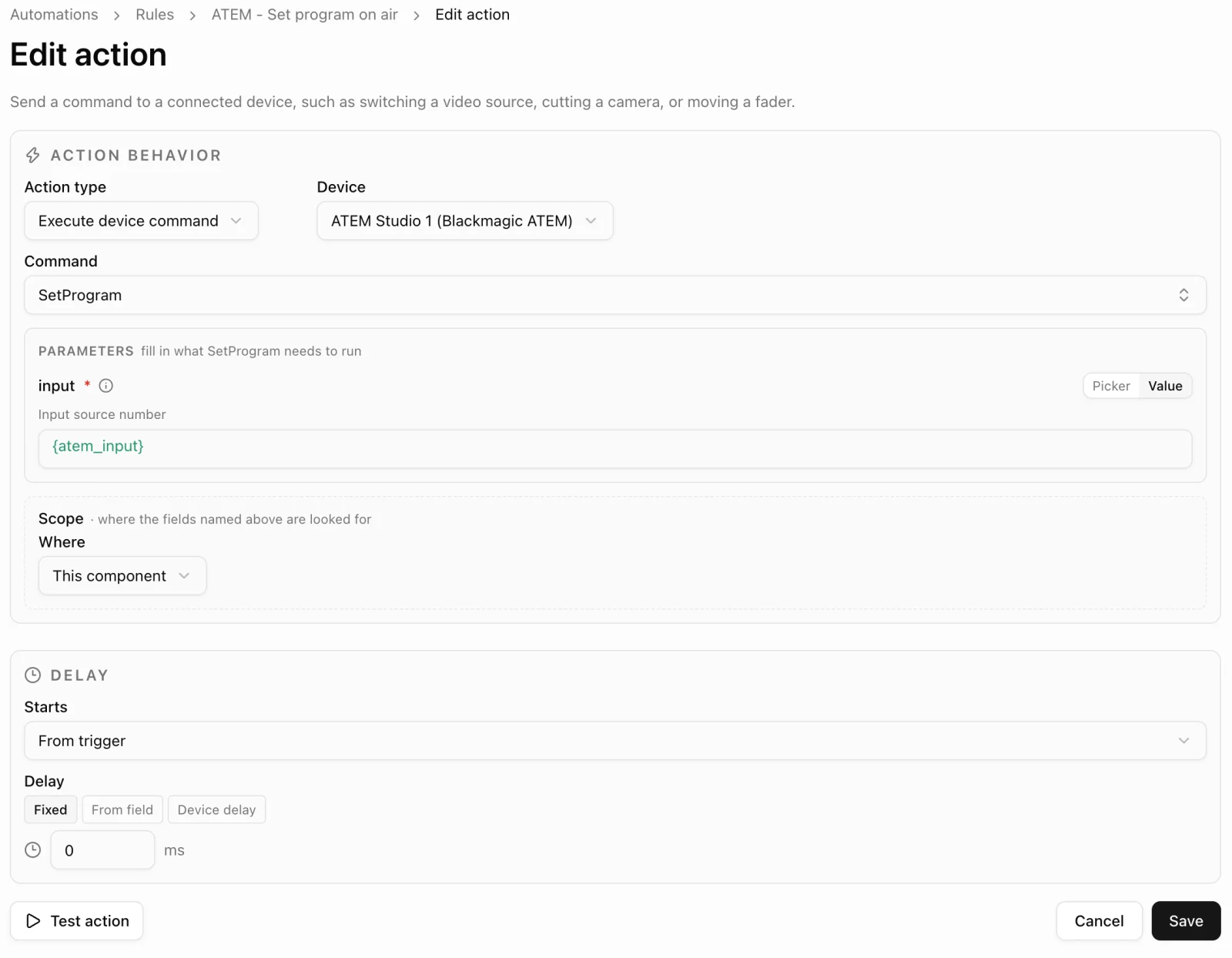 SetProgram reads its input number from the atem_input field of the item that goes on air.
Add any extra actions. Add more actions in the order they should run, such as a downstream key on air, a macro, or a recording start. If one action has to wait for another, give it a fixed delay, a delay from a field, or the device delay. A second rule can prepare the next shot: with the trigger "When a rundown item is cued" and the command SetPreview, the cued item's camera is waiting on preview before the take.
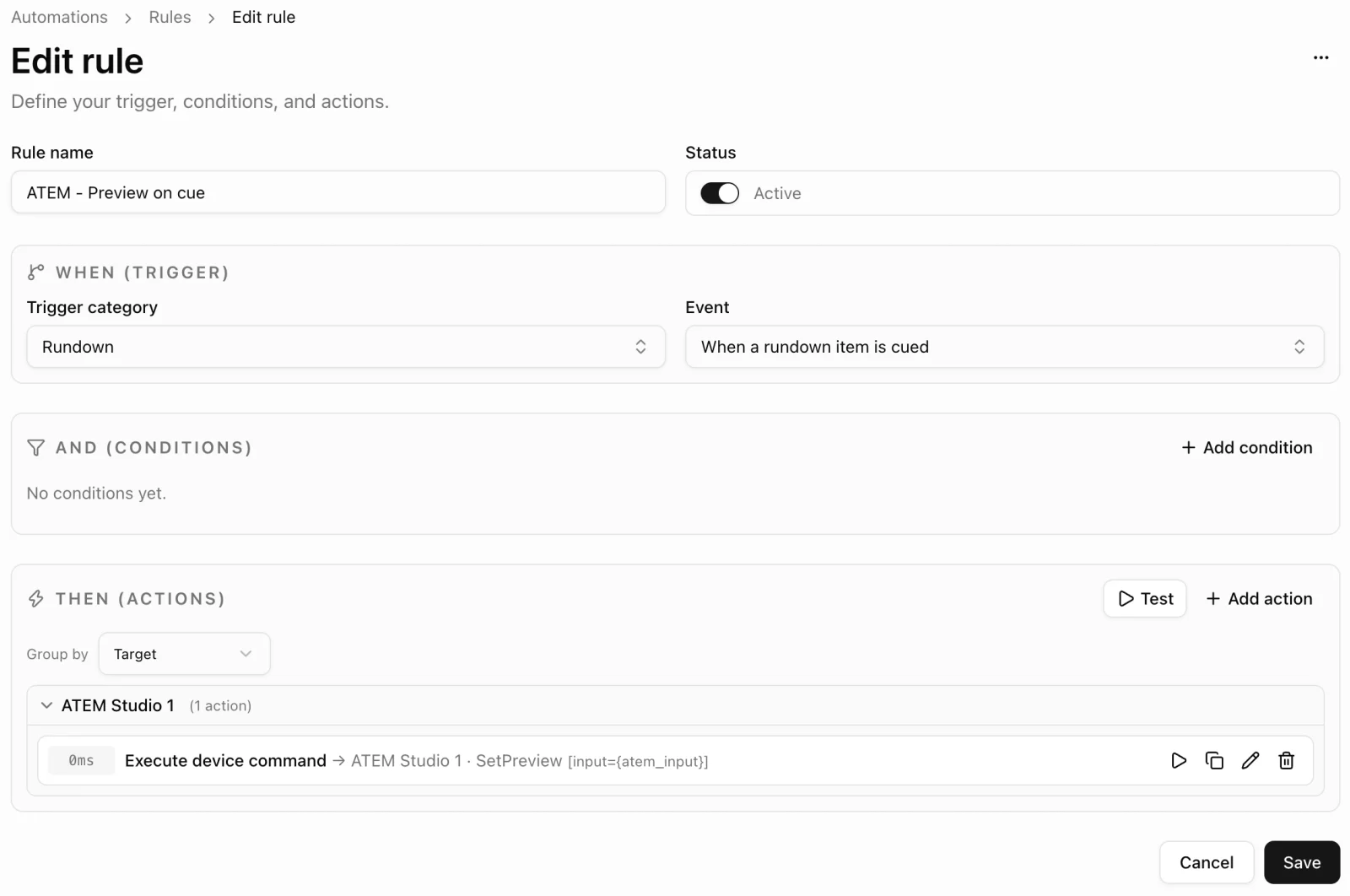 A companion rule puts the cued item's camera on preview.
Rehearse in Studio Mode. Choose the agent that runs the show, then Cue, Take, and Next through the rundown. Watch each item's status, each action move from Ready to Running to Done, and the program state coming back from the ATEM.
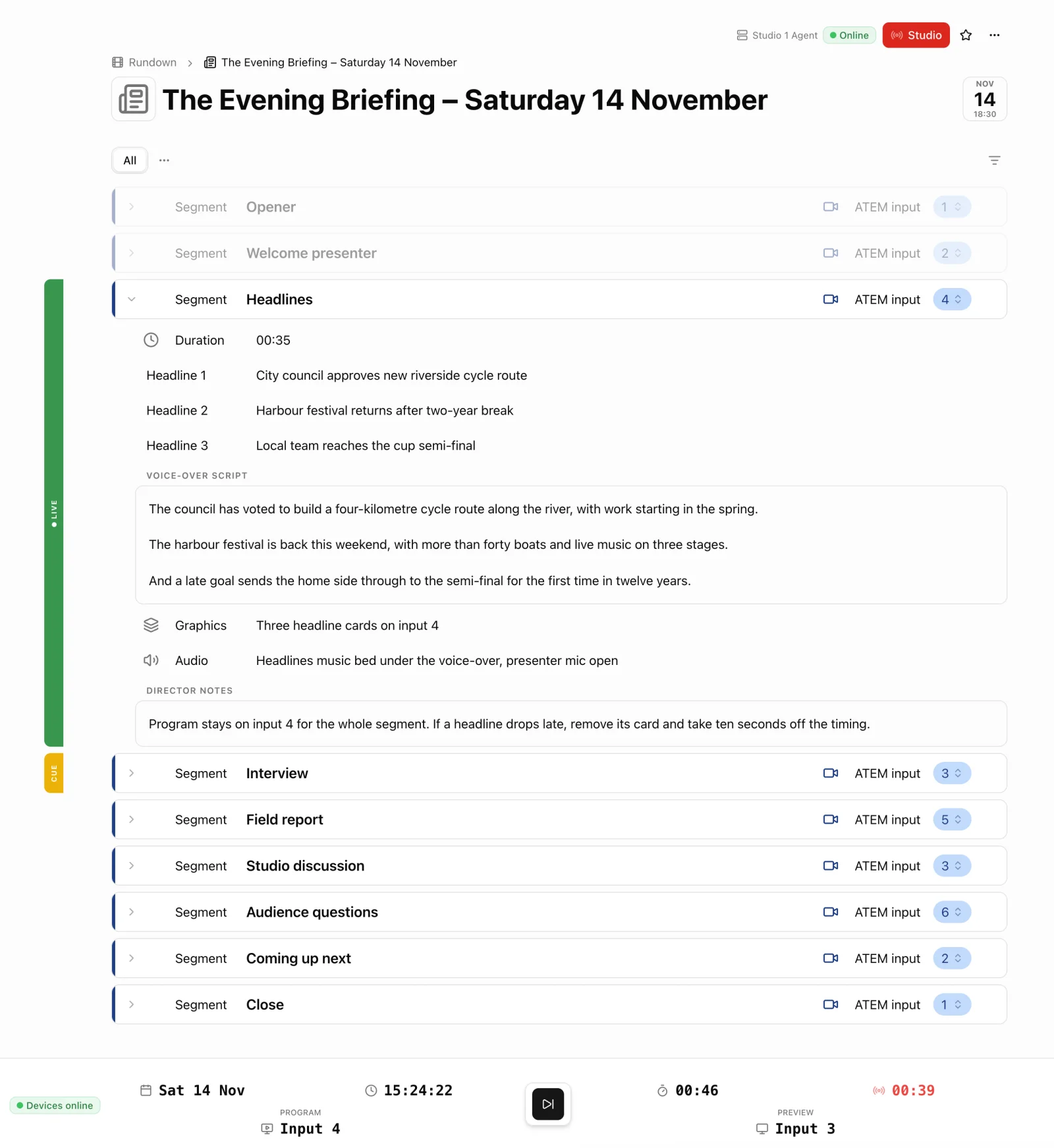 Studio Mode during a rehearsal: Headlines is live on input 4, the Interview is cued on input 3, and the session bar confirms both from the ATEM.
The full device settings and command reference are in the ATEM documentation, and the rule options are described in the rules documentation.
Beyond the cut: transitions, keyers, fade to black, and recording
A cut is only the start. From a rundown rule, Fabl can send every command in the Blackmagic ATEM integration:
- Program and preview: put any input on program or preview
- Transitions: cut, auto, style, rate, T-bar, and dip, wipe, and stinger settings
- Fade to black: fade out and set the rate
- Keyers: take upstream and downstream keys on or off air, and set them up
- SuperSource, multiview, and colour generators: arrange boxes, windows, and colours
- Aux outputs: route a source to an aux
- Macros: run or stop a stored macro
- Recording and streaming: start and stop, on models that support it
- Anything else: send any other ATEM command by name, such as audio mixer settings
A typical sequence on the ATEM integration page uses three of them:
- Cue: place the next camera or source on preview.
- Take: run an auto transition and place the required downstream key on air.
- Confirm: use the returned program, transition, and keyer state to keep the rundown in sync.
Because a rule can run several actions in order, one rundown event can also reach beyond the switcher. An illustrative cue could cut to camera 2 on the ATEM, play the opening graphics in CasparCG, open the presenter's channel on a Behringer X32, and start a recording. Feedback depends on each integration.
Keeping the rundown in sync: feedback and triggers
Automation only earns trust when the team can see what happened. The ATEM reports state back to Fabl:
- Connection changes
- Program and preview input changes
- Transition activity and fade-to-black changes
- Upstream and downstream keyer on-air state
- Recording and streaming state
That state works in two directions. The team sees it: in Studio Mode, items move through Idle, Cued, On-air, Completed, and Skipped, and each action moves through Ready, Running, and Done. Rules can also use it: ATEM changes are device triggers, and trigger data such as the input number and ME index can be used in rule actions. If someone cuts by hand on the panel, Fabl still sees the program change.
Show the ATEM state in the session bar
The session bar along the bottom of Studio Mode is a good place to put that feedback in front of the crew. The session bar is fully customisable with rules: each slot can show the date, a clock, a stopwatch, a countdown, or text that a rule writes.
To show what is on program, create a rule with the trigger category Device, choose the ATEM, and pick the event "When ATEM program input changes". Add the condition ME Index equals 0, so only the main mix-effect bus updates it. Then add the action Program the session bar with set_field, a free slot, and the value Input {trigger.inputNumber}. A second rule with "When ATEM preview input changes" does the same for preview in another slot.
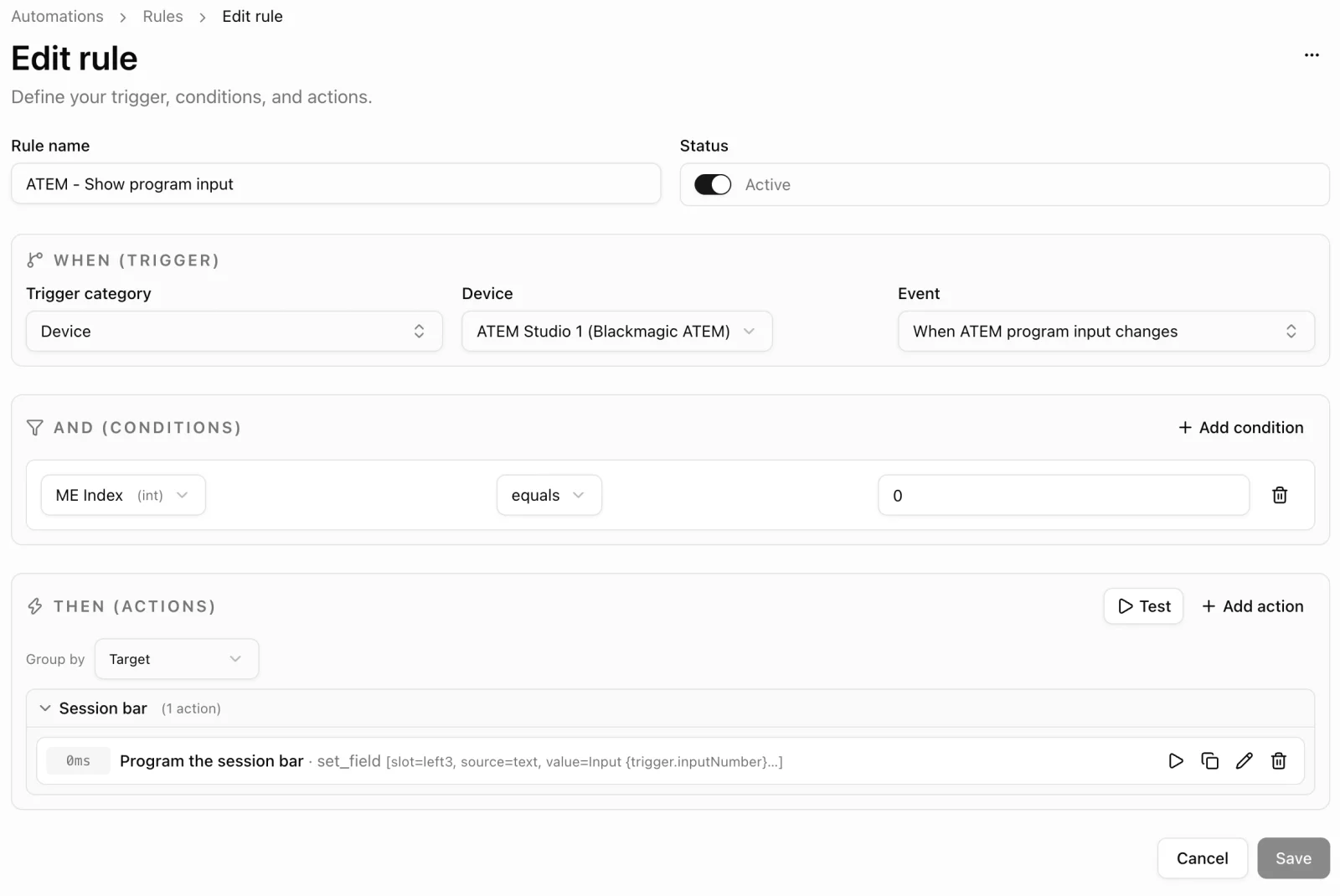 A device rule writes the ATEM's program input into a session bar slot.
 The session bar during the show: program and preview come straight from the switcher.
Because the trigger fires on every program change, the session bar also follows cuts made by hand on the panel or in ATEM Software Control. The rundown shows what was planned, and the session bar shows what the switcher is actually doing.
Test before you go live
Rehearse rundown-driven switching the way you rehearse the show. Before the first live use, check:
- Network. The agent's host can reach the ATEM, the control port is reachable, and the ME index is correct.
- Inputs and macros. Inputs are labelled, and every macro has been run on the switcher itself.
- A full run-through. Rehearse the whole rundown in Studio Mode and watch the feedback for every action.
- Late changes. Reorder an item and drop one, and check that the right cut still fires.
- Manual fallback. Everyone knows who takes over on the panel, and when.
If nothing happens
When a rundown item goes on air and the ATEM does not respond, check these first:
- The agent is offline. Fabl Studio Agent must show Online, and it must be the agent that runs the show in Studio Mode.
- The device is offline. The ATEM must show as connected under Automations → Devices. If it does not, check the host, the port, and the network.
- The field is empty. If the item's ATEM input field has no value, SetProgram has no input to switch to.
- The rule is off. The rule's status must be Active, and its conditions must match the item.
- The ME index is wrong. On a multi-ME switcher, the command may be going to a different bus.
Other switchers you can drive from a Fabl rundown
The ATEM is one of seven vision mixers and switchers in the integrations catalog. vMix has its own integration page and a documented connection over its TCP API. Ross Carbonite, Ross Tria, Ross Ultrix, Utah Scientific, and Vizrt TriCaster are listed too. Coverage differs per device, so check the documentation before planning a show around it.
FAQ
How do I trigger an ATEM cut from a rundown?
Connect a control application to the ATEM over the network and create a rule that links a rundown event to a cut. In Fabl, a typical trigger is "When a rundown item goes on air" or "When a rundown item completes", and the action is a device command such as Cut, run through Fabl Studio Agent.
What port does ATEM control use?
Fabl's ATEM documentation gives the common control port as 9910. Enter it in the UDP Port field, together with the switcher's host, when you add the ATEM as a device.
Should I use ATEM macros or direct commands?
Direct commands are clearer for single takes, such as setting preview and cutting. Macros, recorded and stored on the switcher, suit multi-step sequences such as a show opener. Fabl can send both.
Does it work with multi-ME ATEM switchers?
Yes. Set the correct mix-effect (ME) index in the device settings, so the commands go to the right bus.
How does the rundown know what's on air?
The ATEM reports program and preview inputs, transition and fade-to-black activity, keyer on-air state, and recording and streaming state back to Fabl. Operators see it in the rundown, and rules can use it as a trigger.
Which rundown software can control a Blackmagic ATEM?
Several production tools can send network commands to an ATEM. In Fabl, Fabl Studio Agent connects to the switcher, commonly on port 9910, and rundown events trigger documented commands such as cut, auto transition, keyers, and macros. See the Blackmagic ATEM integration for the full list.
Can I do the same with vMix or other switchers?
Yes. vMix has a documented Fabl integration over its TCP API. Ross Carbonite, Ross Tria, Ross Ultrix, Utah Scientific, and Vizrt TriCaster are listed in the integrations catalog; check each device's setup documentation for its commands and feedback.
Is Fabl just a switcher automation tool?
No. Switcher control is one part of Fabl Go Live. Teams also plan and write in Fabl and run a shared live rundown, and the same production continues into publishing and archiving. Read what Fabl is.
Start with one cue
Pick the cut your team presses on the same cue every show and move it into the rundown first. The ATEM documentation covers the device settings, and the integrations page shows which other tools in your room are listed. When you are ready, create an account, or request a tailored walkthrough and show us your switcher setup.